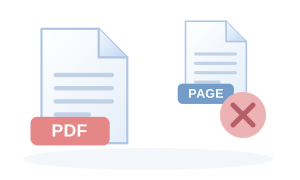
Delete unwanted pages and download the cleaned-up PDF.
Page-preserving processing runs locally. This workspace supports up to 50 PDFs, 200 total source/output pages and 200 MiB per batch. Encrypted PDFs and interactive form/signature fields are rejected; the original is never flattened automatically. Check internal links and bookmarks in the output.
Drag & drop files here
or use the button below · processed locally on your device
Free file tool
Free PDF Page Delete online
Delete unwanted pages and download the cleaned-up PDF. Use the tool directly in your browser with no sign-up. It supports multiple source files in the same session, so it also works as a free batch tool when you have more than one file.
Free to use
No payment required for this tool.
Batch conversion
Queue multiple source files in one session.
Browser-based
The conversion workflow runs from the web page on your device.
No sign-up
Start the file workflow without creating an account.
What PDF Page Delete is useful for
✓Organising pages before submission or sharing
✓Creating a clean working copy of a PDF
✓Keeping only the pages and order you actually need
Input and output checks
Accepted input: pdf.
✓Open the downloaded output before deleting or replacing the source file.
✓Check the details that matter for your use: page count, dimensions, orientation, text, duration or metadata.
✓For batch jobs, confirm every queued file produced the expected output.
How to use this calculator: PDF Page Delete
1Choose your PDF files. Merger needs at least two; the page workspace validates every source before processing.
2Review the numbered page grid. Source file and source page remain visible beneath every preview.
3Select by page number, drag or use arrows to reorder, and review changes in the grid. Use the operation controls before saving.
4Review the output plan, run the operation and check the verified page count and source-to-output mapping.
5Preview and download the generated PDF(s). Keep the originals and review links and document-level features.
Worked conversion example
Example: remove pages 2 and 7 from a 10-page PDF. The downloaded file should contain eight pages in the original order; review bookmarks and cross-page references because page removal can make them stale.
Accepted input
pdf
Batch behaviour
Multiple files supported
How the browser process works
Delete unwanted pages and download the cleaned-up PDF. The page sends the selected file and settings to its pdf-delete browser engine, creates a new output and downloads it without overwriting the source.
Page-preserving processing runs locally. This workspace supports up to 50 PDFs, 200 total source/output pages and 200 MiB per batch. Encrypted PDFs and interactive form/signature fields are rejected; the original is never flattened automatically. Check internal links and bookmarks in the output.
Privacy, quality checks and limitations
Keep the original file until the downloaded output has been opened and checked.
Verify page count, orientation, dimensions, text legibility, audio/video duration and metadata relevant to your use.
Browser-local processing reduces routine upload exposure, but your device, browser extensions and download location still matter.
A converted preview is not proof of legal authenticity, archival compliance, accessibility or digital-signature validity.
Use this tool for a real document task
Remove an unwanted blank, duplicate cover or superseded full page from a document.
A result you can check
In a 5-page source, select page 3 and save the cleaned PDF: output must contain source pages 1, 2, 4 and 5. Use Delete selected first to preview the shortened grid.
Keep at least one page. Page deletion is not text/image redaction: content inside retained pages is untouched. Review the output before distributing it and retain the original.
The browser copies original PDF page content without rasterising it. It rejects encrypted PDFs and interactive form/signature fields rather than flattening them or producing a misleading replacement. Work on a page-only copy when appropriate; retain the interactive/signed original. Files are not uploaded. Maximum: 50 files, 200 total source/output pages, 200 MiB per job.